
Why Does Your Phone Overheat While Gaming? Causes and Fixes

A phone becoming warm during gaming is normal. Modern games place a continuous load on the processor, graphics chip, display, network connection and battery at the same time. The real concern begins when the heat causes frame drops, charging interruptions, dimmed brightness, warning messages or sudden shutdowns.
Phone overheating while gaming is often caused by several factors working together rather than one hardware fault. High graphics settings, charging during play, weak mobile signals, background apps, a thick case and Bangladesh’s warm room temperatures can all make it harder for the phone to release heat.
This guide explains how to identify the likely cause, cool the phone safely and reduce overheating without damaging the device.
Why Does a Phone Overheat While Gaming?
A demanding mobile game makes the processor and graphics chip perform millions of calculations every second. Part of the electrical energy used for that work becomes heat. The display, battery and network modem add more heat while the game is running.
Phones do not have the large fans and heat sinks found inside gaming computers. They normally spread heat through the frame, internal thermal materials and back panel. Once heat is generated faster than it can escape, the device temperature rises.
Manufacturers build thermal protection into modern phones. When a device becomes too hot, it may automatically reduce processor speed, lower display brightness, slow charging or temporarily disable certain features. This protective behaviour is one reason a game may suddenly feel less smooth after 20 or 30 minutes.
Common Causes of Phone Heating During Gaming
Several conditions can increase heat generation or prevent the phone from cooling efficiently.
1. High graphics and frame-rate settings
Higher graphics quality makes textures, shadows, lighting and visual effects more detailed. A high frame-rate mode asks the processor and GPU to produce more frames every second.
Settings such as Ultra HD graphics, 90 FPS or 120 FPS may look smoother, but they also increase power consumption. A phone that handles 60 FPS comfortably may become hot or unstable when pushed to a higher setting for an extended period.
The most demanding setting is not always the best setting. Stable performance at a slightly lower quality often provides a better gaming experience than high graphics followed by thermal throttling.
2. Gaming while the phone is charging
Charging generates heat inside the battery. Gaming generates heat from the processor, GPU, screen and network hardware. Doing both at once combines these heat sources.
Fast charging can add even more heat, especially when the battery level is low and the charger is supplying higher power. Wireless charging may also produce additional heat because some energy is lost during transfer.
If possible, charge the phone before starting a long session. When gaming while connected to power is unavoidable, use a compatible charger and cable, remove unnecessary background loads and pay attention to any charging or temperature warning.
3. High screen brightness
The display can consume a significant amount of power, particularly at maximum brightness. Many players increase brightness to see dark areas of a game clearly, but this adds heat and drains the battery faster.
Try lowering brightness to a comfortable level and play away from direct sunlight. Automatic brightness may raise the level more than necessary in a bright environment, so manual adjustment can sometimes help.
4. Weak mobile network signal
A phone uses more power when it has to work harder to maintain a mobile connection. Poor 4G or 5G coverage can therefore create extra heat during an online match.
The effect becomes more noticeable when the game is already placing a heavy load on the processor. If a stable Wi-Fi connection is available, it may reduce the pressure on the mobile modem and provide more consistent latency.
5. Background apps and downloads
A game may not be the only process using the phone. Cloud backup, app updates, social media synchronization, screen recording, location services and file downloads can continue in the background.
These tasks compete for processing power, network access and battery energy. Close unnecessary apps and pause large downloads before starting a resource-intensive game. There is no need to force-stop every system process; focus on obvious applications consuming battery or data.
6. A thick or poorly ventilated case
A protective case does not create heat, but some thick cases can slow its escape from the phone’s back and frame. This is particularly noticeable with heavy gaming, fast charging or direct sunlight.
Removing the case during a gaming session may improve heat dissipation. Put it back on afterwards to protect the phone from drops and scratches.
A case should also be removed before attaching a phone cooler unless the cooler and case are specifically designed to work together. A thick layer between the cooling plate and the phone reduces heat transfer.
7. Hot room temperature and direct sunlight
The surrounding air determines how easily a device can release heat. A phone will cool less effectively in a hot, poorly ventilated room than in a cooler environment.
This matters in Bangladesh, where warm and humid weather can raise the starting temperature of the device before gaming begins. Playing beside a sunny window, inside a parked vehicle or outdoors under direct sunlight can make overheating happen much faster.
Apple states that iPhones and iPads are designed for use in ambient temperatures from 0°C to 35°C and warns that very hot conditions can shorten battery life. Exact operating limits vary by manufacturer, so follow the guidance provided for your phone.
8. Software, battery or hardware problems
A phone that becomes unusually hot during light gaming may have a separate problem. Possible causes include:
- A recently installed application running excessively in the background
- A system or game update that has not been optimized properly
- A damaged or unsuitable charger
- A worn or faulty battery
- Malware or an application installed from an untrusted source
- Internal damage following a drop or liquid exposure
Restarting and updating the phone can resolve temporary software problems. Repeated overheating during basic use requires more careful diagnosis.
Normal Warmth or Dangerous Overheating?
A warm back panel does not automatically indicate a fault. The symptoms and the phone’s behaviour provide better clues.
| What you notice | What it may indicate | Recommended response |
|---|---|---|
| The phone feels moderately warm, but the game remains stable | Normal heat from sustained processing | Continue playing while monitoring the device |
| Frame rate drops after extended play | Thermal throttling or excessive graphics load | Lower graphics or FPS and take a short break |
| Brightness decreases without manual adjustment | The phone may be controlling its temperature | Pause the game and allow it to cool |
| Charging becomes slow or stops | Battery temperature may be outside the preferred range | Disconnect the charger and stop gaming |
| A temperature warning appears | The phone has detected excessive internal heat | Stop using it and move it to a cooler location |
| The phone shuts down unexpectedly | Thermal protection, battery trouble or another fault | Let it cool fully; seek support if it happens repeatedly |
| The case swells or the back panel separates | Possible battery swelling | Turn the phone off and arrange professional service immediately |
Do not continue gaming through a temperature warning. The protection system is responding to conditions outside the phone’s preferred operating range.
How to Cool Down a Phone While Gaming
The safest approach is to reduce heat generation first and improve ordinary airflow second.
Stop the game for a few minutes
Close the game, turn off the display and place the phone on a dry, hard surface in a shaded area. A short pause can reduce the accumulated heat more effectively than continuing to play at lower performance.
If the device is extremely hot or displays a warning, turn it off and wait until it returns to a comfortable temperature.
Disconnect the charger
Unplug the charging cable when the phone becomes uncomfortably hot. Google’s Pixel guidance advises disconnecting an overheated phone from power, moving it to a cooler place and avoiding use until it has cooled.
Inspect the charger, cable and charging port if the heat appears to come mainly from the charging area. Stop using damaged or uncertified charging accessories.
Remove the protective case
Removing a thick case exposes more of the frame and back panel to the surrounding air. Place the phone on a clean surface and avoid covering it with fabric, bedding or other insulating materials.
Reduce graphics quality and FPS
Start by reducing one demanding setting rather than changing everything at once. Lower the frame-rate limit from 90 or 120 FPS to 60 FPS, or reduce shadows and graphics quality by one level.
Play another match and observe the result. A stable combination of graphics and frame rate is more useful than a short burst of maximum performance.
Lower the display brightness
Reduce brightness enough to lessen power use without affecting visibility. Playing indoors away from direct sunlight makes this easier.
Pause unnecessary activity
Stop screen recording if it is not required, pause downloads and close applications that are clearly active in the background. Disable the mobile hotspot, GPS or Bluetooth only when those features are not needed for the game or connected accessories.
Use a stable internet connection
Try reliable Wi-Fi when mobile reception is weak. Avoid switching networks in the middle of a competitive match, but test the alternative before the next session.
Use a phone cooler when sustained cooling is needed
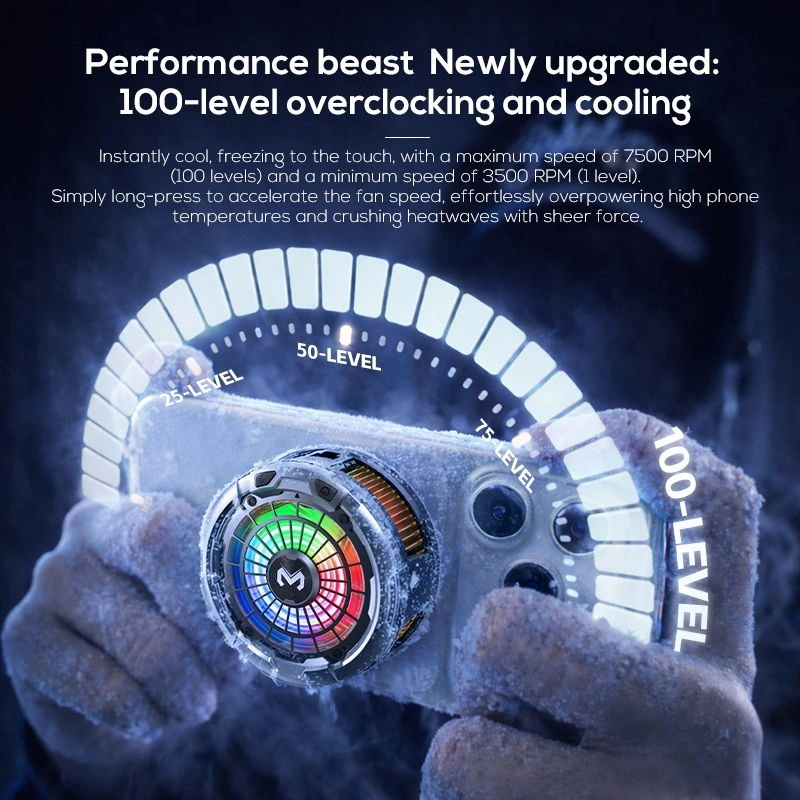
A phone cooler can draw heat away from the back panel during longer sessions. Fan-based units increase airflow, while semiconductor or thermoelectric models actively cool the contact surface.
The cooler must sit against the area where heat is concentrated. Poor alignment, a thick case or weak magnetic contact can limit performance.
If you need help comparing mounting systems and cooling technologies, read our guide on how to choose the right phone cooler.
You can also browse the available phone coolers at Zesan Enterprise and compare attachment type, cooling power and device compatibility.
What You Should Never Do to Cool an Overheated Phone
Rapid or careless cooling can create a new problem.
Do not put the phone in a refrigerator or freezer
A refrigerator may cool the exterior quickly, but the sudden temperature change can cause condensation on or inside the device. Moisture and electronics are a dangerous combination.
Allow the phone to cool gradually in a shaded, ventilated room.
Do not place ice or a wet cloth on the phone
Ice and wet materials can introduce moisture through the charging port, speaker openings or damaged seals. Water resistance is not permission to cool a hot phone with liquid.
Do not direct extreme cold air at close range
Normal room airflow is fine. Extremely cold air applied suddenly may cause condensation, especially in humid weather.
Do not keep playing after a heat warning
Ignoring the warning may lead to further performance reduction or automatic shutdown. Save your progress if possible, close the game and allow the device to cool.
Do not use a cooler if moisture appears
Powerful semiconductor coolers can make their cooling plates colder than the surrounding air. Under humid conditions, condensation may form on the plate or the back of the phone.
Stop the cooler immediately if you see moisture. Disconnect the power, remove the device and dry both surfaces completely before reuse. Avoid setting the cooler unnecessarily cold in a humid room.
How to Stop a Phone from Overheating During Future Gaming Sessions
Preventing excess heat is easier than dealing with it after performance has already dropped.
Begin with a reasonably charged battery
Charge before gaming instead of relying on fast charging throughout the session. You do not need to wait for 100%, but starting with enough power reduces the need to charge under a heavy workload.
Choose stable settings for your phone
A flagship and an entry-level phone will not handle the same graphics load in the same way. Select settings based on sustained performance, not only what the game menu allows.
If the frame rate remains smooth and the phone stays comfortable after several matches, the balance is probably suitable.
Take breaks during long sessions
Short breaks give the phone time to release stored heat. They also reduce prolonged contact between warm surfaces and your hands.
Keep the software updated
Phone and game updates can include performance, battery and thermal-management improvements. Install updates from official sources and restart the device afterwards.
An update can occasionally create temporary background activity while files are optimized. If the phone heats immediately after a major update, allow that work to finish before judging gaming performance.
Check battery usage
Use the battery section in Settings to identify apps consuming unusual amounts of power. An unfamiliar application with high background use deserves investigation.
Uninstall software downloaded from unreliable sources. Do not install “cooling apps” that claim to physically refrigerate a phone; an app can only reduce software activity, not create external cooling.
Keep enough free storage
Extremely limited storage can affect general responsiveness and application behaviour. Remove unused files and apps while retaining enough free space for game updates and temporary data.
Storage cleanup is not a direct cooling system, but a phone operating under unnecessary software pressure may behave less efficiently.
Inspect the battery’s physical condition
A phone with rapid battery drain, unexpected shutdowns, swelling or separation of the back panel should not be used for gaming. Stop charging and using a swollen device, and take it to an authorized or qualified service provider.
Do not press a lifted back panel into place or attempt to puncture a swollen battery.
Can a Phone Cooler Solve Every Heating Problem?
No. A phone cooler can improve heat transfer from the back of the device, but it cannot repair a damaged battery, fix inefficient software or improve a weak network signal.
It is most useful when:
- The phone performs normally but becomes hot during long gaming sessions
- Frame rates decrease after sustained play
- The gaming environment is warm
- The cooler can make direct, stable contact with the phone
- The device has no existing battery or hardware fault
It is less likely to solve the issue when:
- The phone overheats during basic tasks
- A damaged charger or battery is generating the heat
- The game exceeds the phone’s practical hardware capability
- The cooler is attached over a thick case
- Heat is concentrated somewhere the cooling plate cannot contact effectively
Think of a phone cooler as part of thermal management, not a replacement for sensible game settings, safe charging and proper device maintenance.
When Should You Seek Professional Help?
Arrange an inspection if the phone:
- Becomes excessively hot during calls, messaging or other light tasks
- Repeatedly shuts down after cooling
- Shows battery swelling or physical separation
- Produces a burning smell
- Becomes unusually hot around a damaged charging port
- Overheats after a drop or liquid exposure
- Continues showing temperature warnings after software updates and basic troubleshooting
Back up important data before servicing the phone when it is safe to do so. Use an authorized service centre or a qualified technician familiar with the device model.
Final Thoughts
Phone overheating while gaming usually results from sustained processor load combined with charging, high brightness, weak signal, background activity or a warm environment. Start with the simplest fixes: pause the game, disconnect the charger, remove a thick case and move the device away from direct sunlight.
For future sessions, use realistic graphics settings, reduce unnecessary background activity and take occasional breaks. A correctly fitted phone cooler may help during extended gaming, but it should be used with attention to compatibility, placement and condensation.
Most importantly, never use ice, water, a refrigerator or a freezer to cool a phone. If overheating occurs during ordinary use or is accompanied by swelling, shutdowns or a burning smell, stop using the device and seek professional help.
Frequently Asked Questions
Why does my phone overheat while playing games?
Mobile games place sustained pressure on the processor, graphics chip, display, network modem and battery. High graphics settings, charging, weak signal, background apps and warm surroundings can increase the heat further.
How can I cool down my phone while gaming?
Pause the game, disconnect the charger, remove a thick case and move the phone to a shaded, ventilated area. Lowering graphics, frame rate and brightness can reduce heat during the next session.
Is it safe to play games while charging?
A compatible charger does not make gaming automatically unsafe, but charging and gaming together generate more heat. Stop playing and disconnect the charger if the phone becomes uncomfortably hot, slows charging or displays a temperature warning.
Does reducing graphics stop phone overheating?
Reducing graphics quality or frame rate lowers the workload on the processor and GPU, which can reduce heat. It may not solve overheating caused by a faulty battery, damaged charger, hot environment or background software.
Does a phone cooler improve gaming performance?
A phone cooler may help the device maintain stable performance for longer by removing heat from the back panel. The result depends on the phone, cooler technology, placement, room temperature and game workload.
Can a phone cooler damage the phone?
A compatible cooler used correctly is generally safe, but poor placement, excessive clip pressure or condensation may create risks. Stop using it if moisture appears, and follow the instructions supplied with the selected model.
Is it normal for a new phone to heat during gaming?
Some warmth during a demanding game is normal, even on a new phone. Excessive heat, repeated warning messages, charging interruptions or shutdowns deserve investigation.
Why does my phone heat more when using mobile data?
Weak cellular reception makes the modem work harder to maintain a connection. Online gaming already uses the processor and display continuously, so poor 4G or 5G coverage can add noticeable heat.
Should I put an overheated phone in the refrigerator?
No. Rapid cooling can cause condensation and expose the device to moisture. Turn the phone off if necessary and let it cool gradually in a dry, shaded and ventilated place.